Secondary Window
Secondary Window is a small floating window that sits on top of EuroScope. It shows your maps (ground layouts, airspace, sectors, fixes) and live traffic in their own window, so you can keep a clean second view open while you work the main radar.
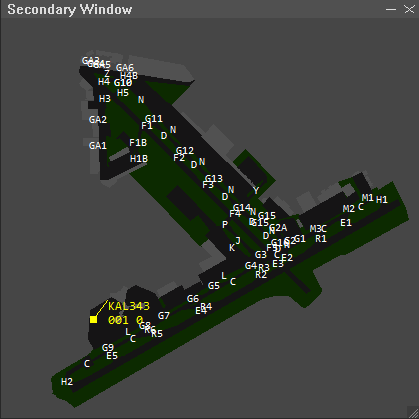
Getting started
- Open the folder you were given. It contains three files:
SecondaryWindow.dll,SecondaryWindowMap.txt, andSecondaryWindowSettings.txt. Keep all three together in the same folder. - In EuroScope, open Other Set, then Plugins, then Load, and
pick
SecondaryWindow.dll. - A small window titled Secondary Window appears above EuroScope.
That is it. The window stays on top so it always feels part of your layout.
The window
Along the top of the window you will find a title bar with three buttons on the right side:
- The list button opens the sidebar, where you choose what to show and reach every action.
- The minus button collapses the window down to just the title bar. Click it again to bring it back.
- The X button hides the window. Type
.sw showin the EuroScope chat to bring it back.
You can move the window by dragging the title bar, and resize it by dragging the small grip in the bottom right corner.
Moving around the map
- Pan: hold the right mouse button and drag inside the map.
- Zoom: scroll the mouse wheel.
The left mouse button is kept free for tags and the measuring tool, so a left click on empty map space does nothing.
Choosing what to show (the sidebar)
Click the list button in the title bar to open the sidebar. The top of the sidebar has a row of action buttons, and below that is your list of maps.
Maps are grouped into folders such as GEO, REGIONS, ESE, and per
airport folders like ESE/RPLL. Click a folder to expand or collapse it.
Tick a map to show it, untick to hide it. Your choices are remembered for
each window, so the next time you load EuroScope everything comes back the
way you left it.
Sidebar buttons
- Hide all and Show all: hide or show every map at once.
- Load .asr: pick one of your EuroScope
.asrfiles and the window shows the same maps that.asrhad turned on. - Altitude filter: open a small box where you set a minimum and maximum altitude in feet. Traffic outside that band is hidden. You can also clear it back to no filter.
- Hide aircraft on ground: turn this on to hide slow targets so parked and taxiing aircraft stop cluttering the view.
- Open new window: open another Secondary Window (up to five). It starts blank so you can build a different view.
- Reload maps and Reload settings: re read your files from disk after you have edited them.
Traffic and tags
Each aircraft shows as a dot with a short label (a tag) beside it. The tag can show the callsign, altitude, speed, and more, depending on how the settings file is set up.
You can drag any tag to move its label away from the dot, which helps when two aircraft sit close together. A thin line connects the moved tag back to its dot so you always know which is which. The position you set lasts for the session.
Measuring distance and bearing
To measure between two points, double click on the map and, without letting go, drag to the second point. A line appears showing the distance in nautical miles and the bearing.
When you let go, the measurement stays on screen so you can read it. It disappears the moment you left click anywhere again.
Waypoints (fixes)
If your sector file includes fixes, they appear as a layer called FIXES in
the sidebar. Tick it to show every fix as a small triangle with its name
beside it. It starts hidden, so turn it on when you want it.
Using more than one window
You can have up to five Secondary Windows open at once. Each one keeps its own position, size, zoom, altitude filter, and its own set of visible maps. A common setup is one window zoomed in on a ground layout and another showing the wider airspace.
Open another window from the sidebar Open new window button, or by typing
.sw new in the EuroScope chat.
Quick chat commands
Type these in the EuroScope command line.
| Command | What it does |
|---|---|
.sw reload |
Re read your map and settings files |
.sw new |
Open another Secondary Window |
.sw show |
Bring back any hidden windows |
.sw hide |
Hide all windows |
.sw save |
Save your current layout right now |
.sw alt 3000 24000 |
Set the altitude filter on every window (in feet) |
.sw alt off |
Clear the altitude filter on every window |
Changing colors and tag text
Most of the look is controlled by SecondaryWindowSettings.txt. You can open
it in any text editor and change things like the background color, the
traffic dot color, the tag font, and what each tag line shows. Every line has
a short comment next to it explaining what it does.
After you save your changes, type .sw reload in the EuroScope chat (or use
the Reload settings button in the sidebar) and the window updates right
away. If something does not look right, the original values are written next
to each setting, so you can always put them back.
If a window goes missing
If you close a window with the X and want it back, type .sw show. If you
want to start fresh with a single default window, close EuroScope and delete
the file SecondaryWindowState.txt, then start again.
Secondary Window (Developers)
File layout
| File | Purpose |
|---|---|
SecondaryWindowMap.txt |
Map definitions: colors, polygons, lines, polylines, labels. |
SecondaryWindowSettings.txt |
Visual settings: background, dots, fonts, tag format, SCT_FILE:, etc. |
SecondaryWindowState.txt |
Auto saved window state |
Commands
.sw reload
Map file (SecondaryWindowMap.txt)
Plain text. Each line is a directive: KEY:value....
Coordinates use TopSky format: hemisphere + DDD.MM.SS.fff,
e.g. N014.30.00.000
Colors
Declare named colors once near the top, then reference by name:
COLORDEF:Black:0:0:0
Map blocks
Every map starts with MAP:. Everything that follows belongs to that map
until the next MAP: directive.
MAP:RPLL:A // required — display name
FOLDER:CTR // optional — grouping label
ACTIVE:1 // optional — 0 hides on load, 1 shows (default)
COLOR:Blue // sets the active color
COLOR: can be issued multiple times inside a map to change color
between shapes.
Shapes
Three closed/open variants, all the syntax Ground Radar / TopSky use:
| Directive | Behavior |
|---|---|
COORDTYPE:OTHER:REGION + COORD: lines |
Filled closed area |
COORDTYPE:OTHER:POLYGON + COORD: lines |
Outline only closed shape (last vertex connects to first) |
COORDTYPE:OTHER:POLYLINE + COORD: lines |
Open line strip, no closing segment |
| ------------------------------------------- | ------------------------------------------------------------- |
COORDTYPE:OTHER:REGION + COORD: lines |
Filled closed area |
COORDTYPE:OTHER:POLYGON + COORD: lines |
Outline only closed shape (last vertex connects to first) |
COORDTYPE:OTHER:POLYLINE + COORD: lines |
Open line strip, no closing segment |
Each shape ends at the next COORDTYPE:, MAP:, or end of file.
// Filled area:
COORDTYPE:OTHER:REGION
COORD:N014.30.00.000:E120.30.00.000
COORD:N014.30.00.000:E121.30.00.000
COORD:N015.30.00.000:E121.30.00.000
COORD:N015.30.00.000:E120.30.00.000
// no fill:
COORDTYPE:OTHER:POLYGON
COORD:N014.37.36.529:E120.59.29.134
COORD:N014.37.35.053:E120.59.48.519
... more coords ...
// Approach arc with no closing line:
COORDTYPE:OTHER:POLYLINE
COORD:N014.28.29.254:E121.05.29.662
COORD:N014.28.24.532:E121.05.27.335
... more coords ...
Other:
POLYGON
COORD:N..:E..
COORD:N..:E..
ENDPOLYGON
Single line segments
For one off straight lines without setting up a polyline block:
LINE:N014.30.00.000:E120.30.00.000:N014.30.00.000:E121.30.00.000
// ^from-lat ^from-lon ^to-lat ^to-lon
Text labels
Drops a label at a geographic coordinate in the current color:
TEXT:N014.34.35.000:E120.54.02.800:2000ft
TEXT:N014.42.05.500:E121.06.55.600:2500ft
TEXT:N014.35.50.679:E120.59.24.237:5500ft
Per-section label size
Use TEXT_SIZE: to set the font size (in pixels) for every TEXT: and
inline ESE label that follows. It sticks until the next TEXT_SIZE:
directive. Use TEXT_SIZE:0 to reset to the global default
(LABEL_FONT_SIZE in settings).
TEXT_SIZE:18
TEXT:N014.30.00.000:E121.00.00.000:RPLL TWR
TEXT_SIZE:10
TEXT:N014.30.45.000:E121.00.30.000:Bay 18
TEXT:N014.30.46.000:E121.00.32.000:Bay 19
TEXT_SIZE:0 // back to default
The font face and bold are configured globally in
SecondaryWindowSettings.txt (see LABEL_FONT_FACE / LABEL_FONT_BOLD).
Importing labels from .ese files
EuroScope .ese label format is lat:lon:category:label, e.g.
N014.30.53.908:E121.00.32.721:RPLL BAYS-GroundLayout:61
N014.31.10.449:E121.00.44.997:RPLL BAYS-GroundLayout:115
Relative paths resolve against the map file's folder. Absolute paths
work too. Add as many INCLUDE_ESE: lines as you want.
.sw ese "C:\.ese"
it will skips lines starting with ; (ESE comments)
or [ (section headers like [FREETEXT]), so you can point it at a full
.ese file with many sections and it'll just pick out the label formated
lines. Imported labels render in white by default.
Text Size
Put TEXT_SIZE:# before the coords to apply that pixel size to everything that follows.
TEXT_SIZE:8
N014.30.53.908:E121.00.32.721:RPLL BAYS-GroundLayout:61
N014.31.10.449:E121.00.44.997:RPLL BAYS-GroundLayout:115
TEXT_SIZE:0 // reset to default
Importing .sct / .sct2 sector files
Standard EuroScope sector files can be merged straight into the maps menu — no need to translate them into the plugin's own map format.
Add one line per file to SecondaryWindowSettings.txt:
SCT_FILE:xxxx.sct
What gets imported?
.sct section |
Becomes | Folder |
|---|---|---|
[ARTCC] |
One toggle per boundary name (polyline) | ARTCC |
[ARTCC HIGH] |
One toggle per boundary name (polyline) | ARTCC HIGH |
[ARTCC LOW] |
One toggle per boundary name (polyline) | ARTCC LOW |
[SID] |
One toggle per procedure (polyline) | SID |
[STAR] |
One toggle per procedure (polyline) | STAR |
[GEO] |
One toggle per ;comment group above a run of lines |
GEO |
[REGIONS] |
One toggle per named region (filled polygon) | REGIONS |
[FIXES] |
All fixes collapse into one FIXES toggle (symbol + name) |
(root) |
Other sections ([INFO], [VOR], [NDB], [AIRPORT], [RUNWAY],
airways, [LABELS]) are parsed and discarded for now (I might add them in
the future).
Waypoints (fixes)
The [FIXES] section of a sector file lists navigation fixes as
NAME LAT LON, for example:
[FIXES]
ALGAD N013.11.08.498 E123.55.19.199
Every fix in the file lands in a single layer called FIXES. It starts
hidden like the rest of the SCT imports, so open the sidebar and tick
FIXES to show them. Each fix draws as a small triangle with its name
beside it. The symbol and name share one color you set with
WAYPOINT_COLOR, and WAYPOINT_SIZE controls how big the triangle is.
WAYPOINT_COLOR:120:160:200 // R:G:B of the symbol and label
WAYPOINT_SIZE:4 // px, half height of the triangle
Settings file (SecondaryWindowSettings.txt)
Same KEY:value syntax. Any key you omit falls back to the built-in default.
Background
BACKGROUND_COLOR:0:0:0 // R:G:B of the map area
Window
All R:G:B. Omit any line to keep the built-in default.
BORDER_COLOR:40:40:40 // Outline around the window
TITLE_BAR_COLOR:80:80:80 // Title Bar
TITLE_TEXT_COLOR:220:220:220 // "Secondary Window" text
Map rendering
LINE_WIDTH:1 // pixels, applies to lines, outlines, polylines
FILL_POLYGONS:true // true = filled regions are filled; false = outline only
Label font (TEXT + inline ESE labels)
Per section overrides via TEXT_SIZE:n in the map file take precedence.
LABEL_FONT_FACE:Consolas
LABEL_FONT_SIZE:12 // pixel height
LABEL_FONT_BOLD:false
Traffic dots + trails
TRAFFIC_DOT_COLOR:255:255:0 // dot color
TRAFFIC_DOT_RADIUS:3 // px (half width of the square dot)
TRAFFIC_TRAIL_LENGTH:5 // number of historical positions to draw (0 = off)
The trail is a row of dots behind each aircraft, same size and color as the
main dot. The plugin records each target's last TRAFFIC_TRAIL_LENGTH
positions and renders them every frame. Set to 0 to disable.
Tags (labels next to each dot)
SHOW_TAGS:true
TAG_COLOR:255:255:0
TAG_FONT_FACE:Consolas
TAG_FONT_SIZE:12 // pixel height
TAG_FONT_BOLD:false
TAG_OFFSET_X:5 // px from dot center (positive = right)
TAG_OFFSET_Y:-3 // px from dot center (negative = up)
TAG_CLICK_WIDTH:80 // width of the clickable/hover area for the callsign
TAG_CLICK_HEIGHT:14
TAG_BACKGROUND:false // true draws a filled box behind every tag
TAG_BG_COLOR:0:0:0 // R:G:B of that box
TAG_BG_PADDING:2 // px of fill around the text on each side
TAG_BACKGROUND_HOVER:false // true shows the box only on the tag under the cursor
Tag background
TAG_BACKGROUND puts a solid color box behind the tag text so callsigns stay
readable over busy ground layouts. TAG_BG_COLOR sets that color, and
TAG_BG_PADDING controls how far the fill reaches past the text on each side.
TAG_BACKGROUND_HOVER is the lighter option. Tags stay transparent until you
move the mouse over one, and only that tag gets the box. Use it on its own for a
clean look that highlights whatever you point at, or alongside TAG_BACKGROUND
for an always on fill. Both modes share TAG_BG_COLOR.
Tag content
The text shown next to each aircraft dot is built from one or more
TAG_LINE: entries, in order. Each is a format string with
{placeholder} tokens. You can add as many TAG_LINE: entries as you
want — each becomes a new line in the tag.
TAG_LINE:{callsign}
TAG_LINE:{type} {alt} {cfl}
TAG_LINE:{gs}kt {hdg}
TAG_LINE:{scratch}
That gives every tag four lines:
PAL123
A320 19000/24000
200kt 045
BAY105
If no TAG_LINE: is declared, the tag falls back to a single line showing
just {callsign}.
Placeholder reference
Position / radar data (always available):
| Placeholder | What it shows |
|---|---|
{callsign} |
Aircraft callsign |
{squawk} |
Actual transponder code reported by the aircraft |
{alt} |
Pressure altitude as 3-digit FL (190 = 19 000 ft, 050 = 5 000 ft) |
{altft} |
Pressure altitude in raw feet (e.g. 19000) |
{fl} |
Same as {alt} — alias for clarity |
{gs} |
Reported ground speed (knots) |
{hdg} |
Reported heading (degrees) |
{vs} |
Vertical speed (feet per minute) |
{trend} |
Vertical trend arrow: ^ climbing, v descending, blank when level |
Flight-plan / controller-assigned data (empty if no flight plan correlated):
| Placeholder | What it shows |
|---|---|
{type} |
Aircraft ICAO type (e.g. A320, B738) |
{wtc} |
Wake turbulence category letter (L, M, H, J) |
{cfl} |
Cleared altitude as 3-digit FL (240 = 24 000 ft, 030 = 3 000 ft). Empty if not set. |
{cflft} |
Cleared altitude in raw feet |
{asquawk} |
Assigned (not necessarily set yet) squawk code |
{spd} |
Assigned speed |
{ahdg} |
Assigned heading |
{scratch} |
Controller scratchpad string |
{dep} |
Departure airport (origin) |
{arr} |
Arrival airport (destination) |
{sid} |
SID name |
{star} |
STAR name |
{rwy} |
Departure runway |
{arrwy} |
Arrival runway |
{rfl} |
Requested cruising level as FL |
Anything between { and } that isn't a known placeholder is echoed back
literally, so typos are visible ({calsign} shows as {calsign} in the
tag). Any text outside {...} is rendered literally.
Example tag formats
Minimal callsign-only (the default if you set nothing):
TAG_LINE:{callsign}
Compact ATC-style:
TAG_LINE:{callsign} {squawk}
TAG_LINE:{fl} {gs}
Full IFR clearance summary:
TAG_LINE:{callsign}
TAG_LINE:{type} {dep}-{arr}
TAG_LINE:{fl}/{cfl} {gs}kt
TAG_LINE:{scratch}
Ground-radar-ish (squawk + scratchpad first):
TAG_LINE:{callsign} {squawk}
TAG_LINE:{scratch}
TAG_LINE:{rwy} {sid}
Multiple Secondary Windows
Up to 5 Secondary Windows can be open at once. Each has its own position, size, view (pan/zoom), altitude filter, and per-window map visibility — so you can have one window showing the ground layout for a particular airport and another showing the TMA, without affecting either.
| How to open another | What you get |
|---|---|
| Sidebar → Open new window | New window starts with all maps hidden so you can pick exactly what to show. |
.sw new chat command |
Same as above. |
The first window at plugin load seeds its visibility from the ACTIVE:
flags in the map file (and from any saved HIDE: lines in
SecondaryWindowState.txt). New windows opened during the session start
blank by design — opening a new window almost always means "I want a
different view," not "show me everything again."
Loading from EuroScope .asr files
Open the sidebar and click Load .asr to bring up a Windows file
picker. Pick any EuroScope .asr and the window's visible-map set is
replaced with whatever that .asr had on:
- Maps mentioned in the
.asrand also loaded in ourMapCollection→ become visible in this window - Anything else → hidden in this window
The window then refits its view to fit the new selection. Other windows
are untouched — each window can load a different .asr.
The plugin recognises these .asr section prefixes (case-insensitive):
ARTCC boundary: ARTCC high boundary: ARTCC low boundary:
ARTCC: ARTCC high: ARTCC low:
Airports: Fixes: Free Text:
Geo: Regions: Runways:
Sids: Stars:
VORs: NDBs:
Low airway: High airway:
Lines from any other prefix (display config, plugin properties, window position, etc.) are ignored.
Name matching: the second : separated field of each line is the map
name. Free Text: entries strip everything after the first backslash
(so Free Text:RPLL TWY-GroundLayout\C:freetext matches a map named
RPLL TWY-GroundLayout). Comparison is case-insensitive.
Window state persistence (SecondaryWindowState.txt)
The plugin auto-saves your window layout on unload and restores it at startup. You normally never touch this file, it's the persisted form of every position drag, resize, view pan/zoom, map toggle, and altitude filter change.
What survives a restart, per window:
- Screen position + size
- Collapsed-to-title-bar state
- View center (lat/lon) and zoom (nm/px)
- Altitude filter (inherit / explicit min/max)
- The set of maps hidden in this window
Format (line based, one WINDOW block per open window):
WINDOW
POS:100:100:420:420
COLLAPSED:0
UNCOLLAPSED_H:420
VIEW:14.500000:121.000000:0.500000
ALT:1:-2147483648:2147483647
HIDE:RPLL Groundlayout
HIDE:RPLL Background
| Field | Meaning |
|---|---|
POS |
x:y:w:h screen coords, pixels |
COLLAPSED |
0 / 1 |
UNCOLLAPSED_H |
Height to restore when uncollapsed |
VIEW |
centerLat:centerLon:nmPerPixel |
ALT |
inherit:minFt:maxFt (inherit=1 means use file level filter) |
HIDE |
One per hidden map (visible = absent). Names match MAP: names |
Up to 5 WINDOW blocks are restored; extras are silently dropped. Lines
starting with // and blank lines are ignored.
Useful one offs:
| Want to... | Do this |
|---|---|
| Reset to a single default window | Delete SecondaryWindowState.txt |
| Force save mid-session (e.g. before EuroScope might crash) | .sw save |
| Reset one window without losing the others | Remove its WINDOW block, or just delete its HIDE: lines for "all visible" |
| Ship a default layout to a teammate | Send them your SecondaryWindowState.txt |
Chat commands
All issued in the EuroScope command bar:
| Command | Effect |
|---|---|
.sw reload |
Re-read both .txt files from disk (also re-imports SCTs) |
.sw load <path> |
Load a different map file (e.g. Ground Radar's) |
.sw settings <path> |
Load a different settings file |
.sw ese <path> |
Import labels from a .ese file (one category → one map) |
.sw sct <path> |
Import a .sct / .sct2 sector file ad-hoc |
.sw new |
Open another Secondary Window (up to 5 total, all maps hidden) |
.sw show |
Show all hidden windows |
.sw hide |
Hide all windows |
.sw save |
Force-save window state now (positions, hidden maps, alt filter) |
.sw alt <min> <max> |
Set the altitude filter on all windows. Use feet, e.g. .sw alt 3000 24000. |
.sw alt off / .sw alt reset |
Reset altitude filter on all windows back to the map file default. |
All References
Every KEY:value line you can put in either of the .txt files, in one
place. Anything not listed is ignored, so the parser silently accepts
unknown lines without complaining.
SecondaryWindowMap.txt
| Key | Value | Remarks |
|---|---|---|
COLORDEF: |
Name:R:G:B |
Defines a named color. R/G/B are 0–255. |
MAP: |
display name |
Starts a new map block; everything below belongs to it until the next MAP: |
FOLDER: |
name |
Optional folder/grouping label (not currently shown in UI but parsed). |
AIRPORT: |
ICAO |
Optional stored, not rendered (as of now) |
ACTIVE: |
0 or 1 |
Initial visibility. Default 1 (visible). |
COLOR: |
name |
Sets the active color (must match a prior COLORDEF). Applies to all shapes/labels that follow until the next COLOR: |
COORDTYPE: |
OTHER:REGION |
Starts a filled closed polygon — see COORD: lines below. Block ends at next COORDTYPE: / MAP: / EOF. |
COORDTYPE: |
OTHER:POLYGON |
Starts an outline only closed shape. Last vertex auto connects to the first. |
COORDTYPE: |
OTHER:POLYLINE |
Starts an open line strip (no closing segment). |
COORD: |
lat:lon |
Adds a vertex to the active polygon / polyline. Lat/lon in DMS format (N014.30.00.000 etc.). |
POLYGON |
(none) | Legacy alias for COORDTYPE:OTHER:REGION. Closed by an ENDPOLYGON line. |
ENDPOLYGON |
(none) | Ends a legacy POLYGON block. |
LINE: |
lat1:lon1:lat2:lon2 |
One-shot straight segment in current color. |
TEXT: |
lat:lon:label-text |
Label at a coord, current color, current size. Label may contain colons. |
TEXT_SIZE: |
px |
Sticky font size in pixels for following TEXT: and ESE labels. 0 = default. |
INCLUDE_ESE: |
path |
Imports labels from a .ese files. Path can be relative to the map file or absolute. |
| raw line | lat:lon:category:label |
Inline ESE label. Category becomes its own map under folder ESE. |
SecondaryWindowSettings.txt
| Key | Value | Default | Remarks |
|---|---|---|---|
// |
anything | — | Comment line. |
BACKGROUND_COLOR |
R:G:B |
128:128:128 |
Map area background. |
BORDER_COLOR |
R:G:B |
40:40:40 |
Outline around the window. |
TITLE_BAR_COLOR |
R:G:B |
80:80:80 |
Strip behind the title text. |
TITLE_TEXT_COLOR |
R:G:B |
220:220:220 |
|
RESIZE_GRIP_COLOR |
R:G:B |
140:140:140 |
|
LINE_WIDTH |
px |
1 |
Width for lines, polygon outlines, polylines. |
FILL_POLYGONS |
true / false |
true |
false makes REGION shapes outline only. |
WAYPOINT_COLOR |
R:G:B |
120:160:200 |
Color of the fix triangle and its name (the FIXES layer). |
WAYPOINT_SIZE |
px |
4 |
Half height of the triangle symbol. |
LABEL_FONT_FACE |
font name | Consolas |
Font for TEXT: labels |
LABEL_FONT_SIZE |
px |
12 |
Default label height. Overridable per section with TEXT_SIZE:. |
LABEL_FONT_BOLD |
true / false |
false |
Bold label text. |
TRAFFIC_DOT_COLOR |
R:G:B |
255:255:0 |
Aircraft dot color. |
TRAFFIC_DOT_RADIUS |
px |
3 |
Width of the square dots. |
TRAFFIC_TRAIL_LENGTH |
integer | 0 |
Number of historical positions drawn behind each aircraft. 0 disables the trail entirely. |
SHOW_TAGS |
true / false |
true |
Master switch for callsign labels. |
TAG_COLOR |
R:G:B |
255:255:0 |
Default tag text color. |
COLOR_DEPARTURE |
R:G:B |
(unset) | Override tag color when the aircraft's origin airport is active for departure in EuroScope. |
COLOR_ARRIVAL |
R:G:B |
(unset) | Override tag color when the aircraft's destination airport is active for arrival in EuroScope. Wins over departure. |
TAG_FONT_FACE |
font name | Consolas |
Tag font. |
TAG_FONT_SIZE |
px |
12 |
Tag font size. |
TAG_FONT_BOLD |
true / false |
false |
Bold tag text. |
TAG_OFFSET_X |
px |
5 |
Default horizontal offset of tag from the dot. Per-aircraft offset wins once a tag is dragged. |
TAG_OFFSET_Y |
px |
-3 |
Default vertical offset (negative = above the dot). |
TAG_CLICK_WIDTH |
px |
80 |
Width of the clickable and hover area around the callsign. |
TAG_CLICK_HEIGHT |
px |
14 |
Height of that area per line. |
TAG_BACKGROUND |
true / false |
false |
Draw a filled box behind every tag. |
TAG_BG_COLOR |
R:G:B |
0:0:0 |
Color of the tag background box. Setting this also turns the background on. |
TAG_BG_PADDING |
px |
2 |
How far the fill reaches past the text on each side. |
TAG_BACKGROUND_HOVER |
true / false |
false |
Show the background only on the tag under the cursor. |
TAG_LINE |
format string | — | Adds one line to every tag. Repeat for multiple lines. Supports {placeholder}. See the Tag content section above. |
SCT_FILE |
path | — | Imports a .sct / .sct2 sector file. See Importing .sct sector files for the path resolution rules. Repeat for multiple files. |
SCT_DIR |
path | — | Optional base folder for plain (non absolute, non\anchored) SCT_FILE: entries. Lets you reference every sector by filename only. |
Window controls
| Action | Result |
|---|---|
| Drag title bar | Move the window |
| Drag bottom-right grip | Resize |
| Right drag inside map area | Pan the map view |
| Double click then drag in map area | Draw a measuring ruler with distance in NM and bearing. It stays on screen after you let go, until your next left click dismisses it |
| Drag an aircraft callsign | Move that tag's offset relative to its dot (per aircraft, persists for the session) |
| Mouse wheel | Zoom |
| Click the list button in title bar | Open the sidebar to toggle maps and reach every action |
| Click the - in the title bar | Collapse the window to just the title bar (click again to restore) |
| Click the X in the title bar | Hide the window (.sw show to bring it back) |
Panning moved to the right mouse button so a left click stays free for tags and the measuring ruler. The right button no longer opens a popup menu; everything that used to live there now sits in the sidebar.
Sidebar
Every control lives in the sidebar now. Click the list button in the title bar
to slide it open. The top shows a row of action buttons, and below that the map
list as a tree grouped by folder (such as GEO, REGIONS, ESE, and per
airport sub folders like ESE/RPLL). Tick a map to show it in this window,
untick to hide it. Folders expand and collapse, and your layout is saved per
window.
ESE free text imports nest under ESE by aerodrome, so the taxiway and bay
labels for each airport sit under their own ESE/<ICAO> folder and each one
has its own toggle.
Sidebar actions
| Button | Effect |
|---|---|
| Hide all / Show all | Hide or show every map in this window at once |
| Load .asr | File picker that applies an EuroScope .asr visible map list to this window only |
| Altitude filter... | Open a dialog for the per window altitude filter (min/max in feet, or "No filter") |
| Hide aircraft on ground | Toggle skipping slow targets (under about 40 kt) so taxiing and parked aircraft stop cluttering the view |
| Open new window | Spawn another window (up to 5). Starts with all maps hidden. |
| Reload maps | Re-read the map file from disk (also re-imports any SCT_FILE: entries) |
| Reload settings | Re-read settings and re-import SCT content |
When the map area is empty (no maps loaded, or every map hidden in this window), the window shows a centered hint — No maps loaded or No maps visible. The first time you enable a map in a previously-blank window, the view automatically refits to the map's bounding box so you see it right away.
